

Power BI is a natural place to analyze and visualize IoT sensor data: once your measurements are available as a table, you can filter them, aggregate them, chart them over time, and combine them with data coming from other business systems.
In this post, we’ll connect Power BI directly to Connhex data using Power Query. The same pattern works well when you want to build Power BI dashboards from telemetry, device events, environmental readings, machine measurements or any other time-series data produced by connected products.
The flow is simple:
- authenticate with Connhex Auth and get a bearer token
- call the Connhex Reader API to fetch sensor data and messages from a device channel
- expand the response into a table that Power BI can use for reports and visuals
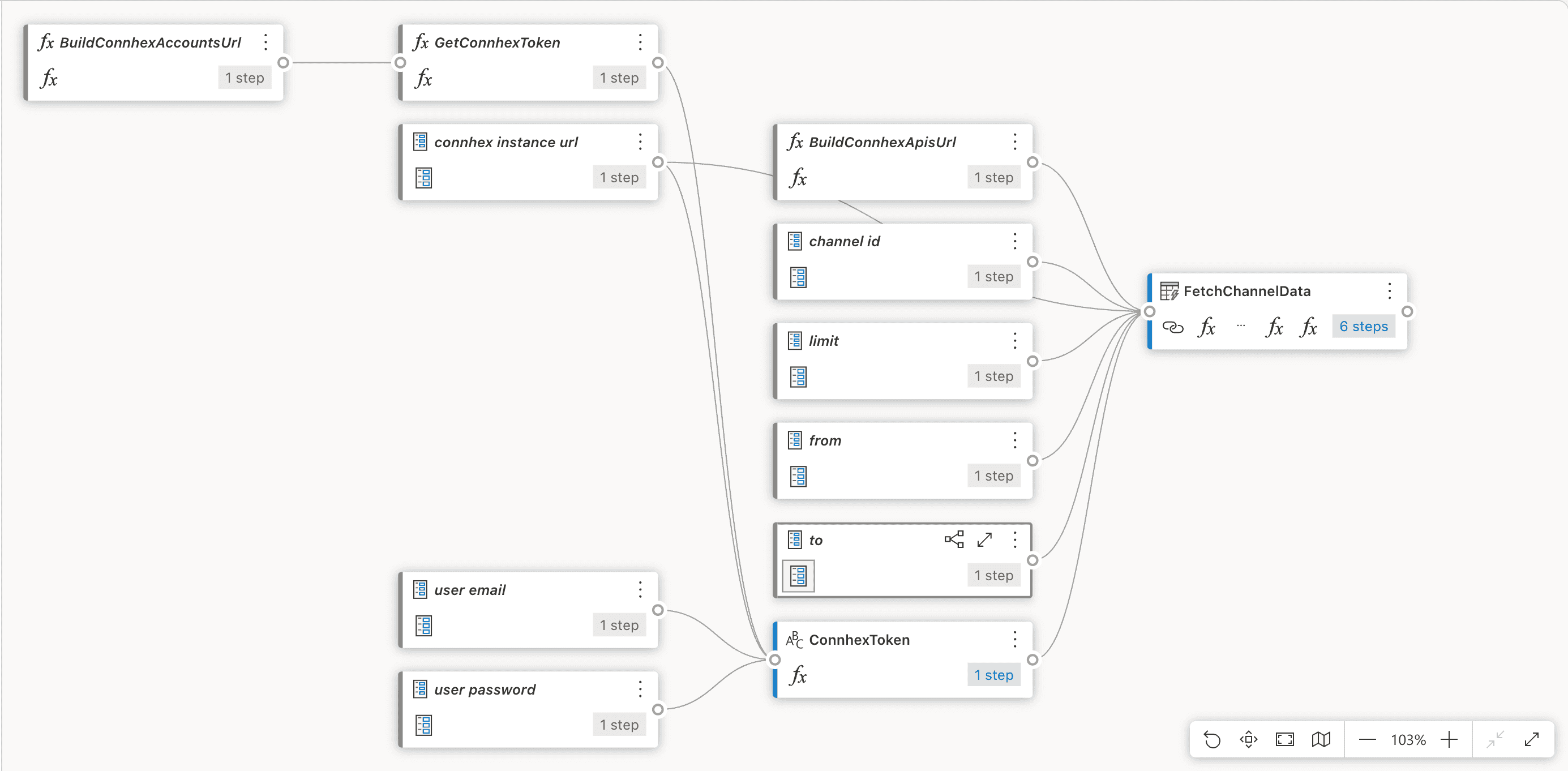
Here’s the complete Power Query flow:
What we’ll create
We’ll create a few Power Query parameters, three helper functions and one final query. The result is a repeatable import flow for loading IoT telemetry into Power BI without downloading CSV exports or copying API tokens by hand.
The parameters are:
connhex instance urluser emailuser passwordchannel idfromtolimit
The helper functions are:
BuildConnhexAccountsUrl, used to build the Connhex Auth base URLBuildConnhexApisUrl, used to build the Connhex API base URLGetConnhexToken, used to retrieve a bearer token
The final query calls the Reader API and returns a table.
Building the Connhex URLs
Connhex instances expose authentication and API services on different subdomains. Starting from your instance domain, we can build both URLs from Power Query.
Create a blank query named BuildConnhexAccountsUrl and paste this code:
(InstanceUrl as text) as text =>
    let
        CleanInstanceUrl = Text.TrimEnd(InstanceUrl, "/"),
        Parts = Uri.Parts(CleanInstanceUrl),
        Scheme = Parts[Scheme],
        Host = Parts[Host],
        AccountsUrl = Scheme & "://accounts." & Host
    in
        AccountsUrl
Then create another blank query named BuildConnhexApisUrl:
(InstanceUrl as text) as text =>
    let
        CleanInstanceUrl = Text.TrimEnd(InstanceUrl, "/"),
        Parts = Uri.Parts(CleanInstanceUrl),
        Scheme = Parts[Scheme],
        Host = Parts[Host],
        ApisUrl = Scheme & "://apis." & Host
    in
        ApisUrl
For example, if your instance URL is https://connhex.com, these functions will build https://accounts.connhex.com and https://apis.connhex.com.
Getting a Connhex bearer token
In this case, we’ll authenticate with Connhex Auth to obtain a bearer token, then use that token to call Connhex APIs. You can read more about Connhex token-based authentication here.
The next function creates a Connhex Auth login flow, submits your credentials, and returns the session_token that Connhex APIs expect in the Authorization header.
Create a blank query named GetConnhexToken:
(
    InstanceUrl as text,
    Identifier as text,
    Password as text
) as text =>
    let
        AccountsUrl = BuildConnhexAccountsUrl(InstanceUrl),

        FlowResponse =
            Json.Document(
                Web.Contents(
                    AccountsUrl,
                    [
                        RelativePath = "auth/self-service/login/api",
                        Headers = [
                            Accept = "application/json"
                        ],
                        Timeout = #duration(0, 0, 0, 30)
                    ]
                )
            ),

        ActionUrl = FlowResponse[ui][action],
        ActionParts = Uri.Parts(ActionUrl),
        ActionPath = Text.TrimStart(ActionParts[Path], "/"),
        ActionQuery =
            if Record.HasFields(ActionParts, "Query")
            then ActionParts[Query]
            else [],

        LoginBody =
            Json.FromValue([
                identifier = Identifier,
                password = Password,
                method = "password"
            ]),

        LoginRawResponse =
            Web.Contents(
                AccountsUrl,
                [
                    RelativePath = ActionPath,
                    Query = ActionQuery,
                    Headers = [
                        Accept = "application/json",
                        #"Content-Type" = "application/json"
                    ],
                    Content = LoginBody,
                    ManualStatusHandling = {400, 401, 403, 422, 500},
                    Timeout = #duration(0, 0, 0, 30)
                ]
            ),

        LoginResponse = Json.Document(LoginRawResponse),

        Token =
            if Record.HasFields(LoginResponse, "session_token") then
                LoginResponse[session_token]
            else if Record.HasFields(LoginResponse, "ui") and Record.HasFields(LoginResponse[ui], "messages") then
                error LoginResponse[ui][messages]{0}[text]
            else
                error "Connhex login failed. No session_token returned."
    in
        Token
Then create a query named ConnhexToken:
GetConnhexToken(
    #"connhex instance url",
    #"user email",
    #"user password"
)
Connhex bearer tokens expire after 24 hours. With this setup, Power Query evaluates ConnhexToken when the data is refreshed, so the Reader API query receives a fresh bearer token instead of relying on a token copied manually into the query.
Fetching IoT sensor data from a channel
Now we can use the token to call the Connhex Reader API.
Create a query named FetchChannelData:
let
    Token = ConnhexToken,
    ApisUrl = BuildConnhexApisUrl(#"connhex instance url"),

    Source =
        Json.Document(
            Web.Contents(
                ApisUrl,
                [
                    RelativePath = "iot/reader/channels/" & #"channel id" & "/messages",
                    Query = [
                        offset = "0",
                        limit = Text.From(#"limit"),
                        from = Text.From(#"from"),
                        to = Text.From(#"to"),
                        format = "messages"
                    ],
                    Headers = [
                        Accept = "application/json",
                        Authorization = "Bearer " & Token
                    ],
                    Timeout = #duration(0, 0, 0, 30)
               ]
            )
        ),

    Messages =
        if Record.HasFields(Source, "messages")
        then Source[messages]
        else {},

    MessagesTable =
        Table.FromList(
            Messages,
            Splitter.SplitByNothing(),
            {"Message"},
            null,
            ExtraValues.Error
        ),

    ExpandedMessages =
        if List.Count(Messages) > 0 then
            Table.ExpandRecordColumn(
                MessagesTable,
                "Message",
                Record.FieldNames(Messages{0})
            )
        else
            MessagesTable
in
    ExpandedMessages
The Reader API endpoint used here is:
GET /iot/reader/channels/{channelId}/messagesSo we need to retrieve the ID of the event channel of the thing we want to monitor.
If you already know the Connhex thing ID, you can retrieve it with GET /iot/things/{thingId}. Otherwise, you can list things with GET /iot/things, then list a thing’s channels with GET /iot/things/{thingId}/channels.
In this example, we set format = "messages" to retrieve Connhex messages. We also pass a time range with from and to, expressed as Unix timestamps. This is usually what you want for Power BI sensor dashboards, where every refresh should load measurements for a specific reporting window.
Turning the response into a Power BI table
The Reader API returns a JSON response containing a messages array. The final part of the query turns that list into a Power BI table:
Table.FromListcreates one row per messageTable.ExpandRecordColumnexpands each message object into columns
After the query runs, the result looks like this:
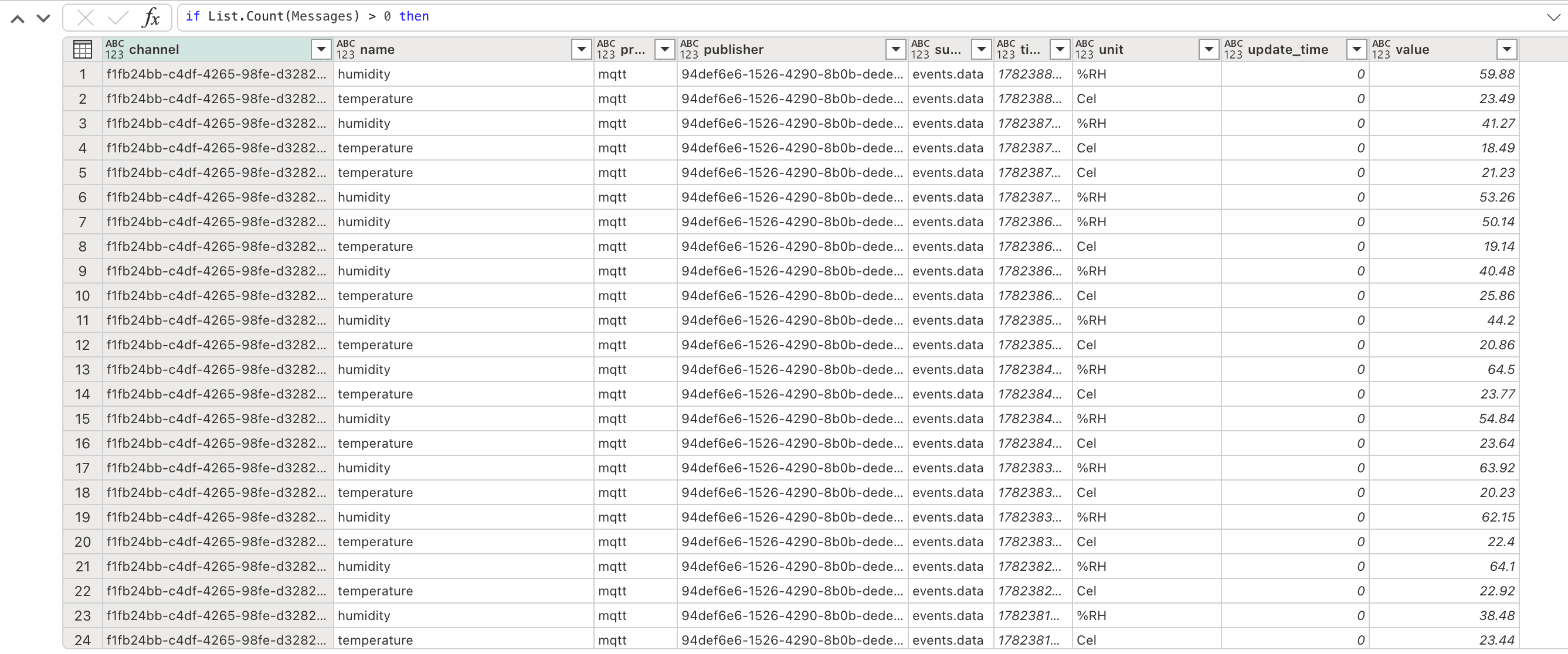
At this point, the data is ready for Power BI transformations and visuals. Depending on your channel data, you can turn raw device messages into the usual building blocks of an IoT report:
- filter by message
name,publisher,subtopicorunit - plot numeric
valuefields over time - create cards for latest stored values
- group measurements by device or message name
- compare sensor readings against operational or customer data
This is the main benefit of using Power Query: once Connhex data is available as a table, the rest of the Power BI workflow is standard.
Permissions
The user configured in Power BI must have the proper Connhex permissions for the APIs used by the query.
The Reader API call requires permission to read messages from the target channel, while the Things API calls require permissions to read or list things and their channels.
Wrapping up
With a few Power Query functions, Power BI can authenticate with Connhex Auth, fetch IoT sensor data through the Connhex Reader API, and turn device messages into a table that is ready for analysis.
This makes it possible to build Power BI dashboards and reports from Connhex telemetry without relying on manual exports. Once the data is in Power BI, you can model it, visualize it and combine it with the rest of your business data using the tools your team already knows.